> For the complete documentation index, see [llms.txt](https://llm.theparley.org/llms.txt). Markdown versions of documentation pages are available by appending `.md` to page URLs; this page is available as [Markdown](https://llm.theparley.org/choose-your-app/codename-goose.md).
# Codename Goose
This guide shows how to integrate your Parley API key into Codename Goose using only the GUI, so you can immediately access chat and image generation features powered by Parley.
{% stepper %}
{% step %}
## Install Codename Goose
The linked options on Mac and PC are the most likely matches for your work computer. Linux packages are available, too.
{% embed url="" %}
{% endstep %}
{% step %}
## Configure LLM Provider
* [ ] Open Goose Desktop.
* [ ] Navigate to Settings or Preferences (usually via a gear icon or menu bar).
* [ ] Find a section labeled Providers or LLM Provider Configuration.
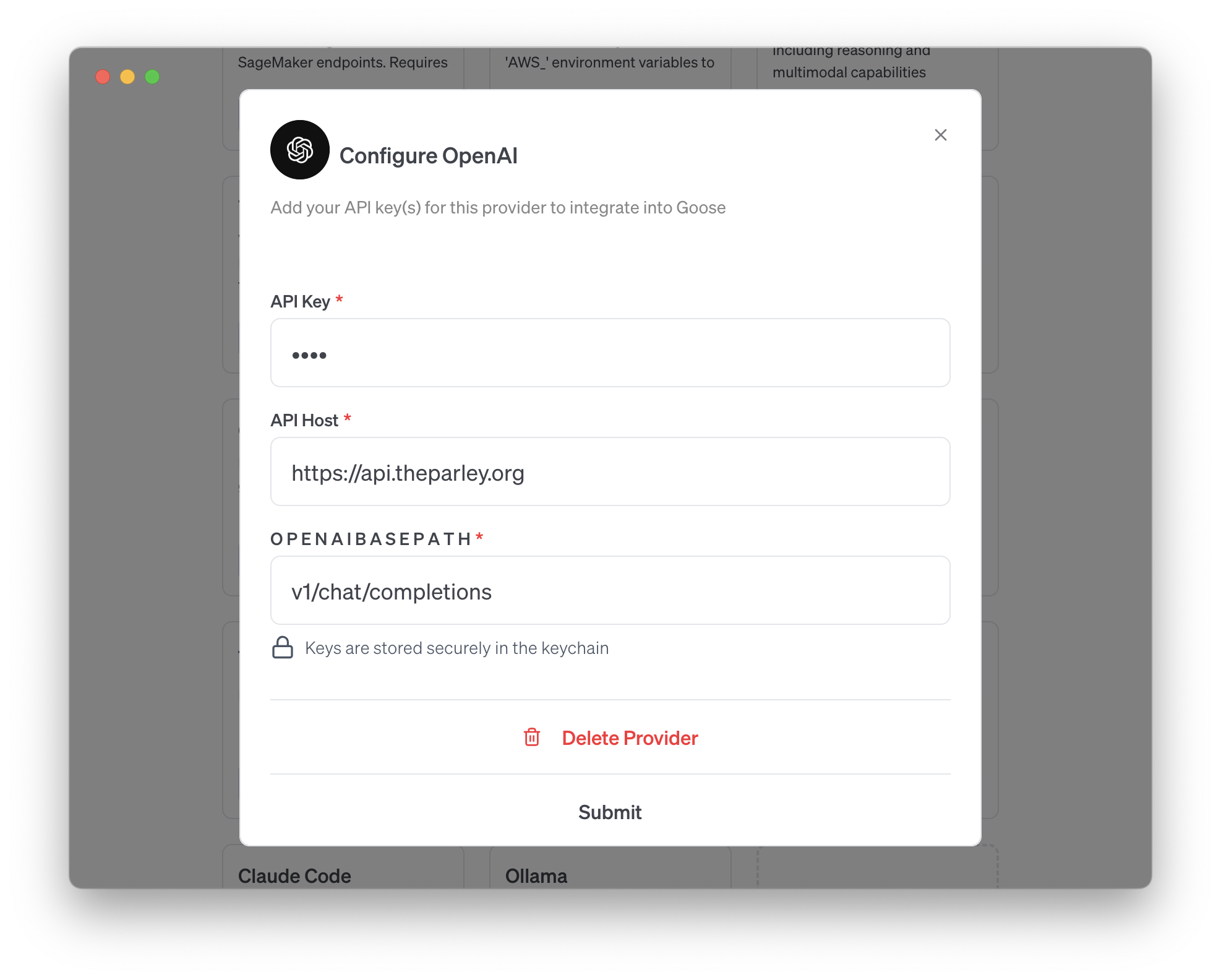
* [ ] Select OpenAI as the LLM Provider and configure it.
* [ ] Request a Parley API key through the self-service portal, .
* [ ] In the provider setup form, enter these and hit submit.
* **Name**: `Parley`
* **API Key**: your unique API key
* **API Host / Endpoint**:\
`https://keys.theparley.org/v1`
* **OpenAI Base Path**\
`v1/chat/completions`
{% endstep %}
{% step %}
## Enable Parley Models
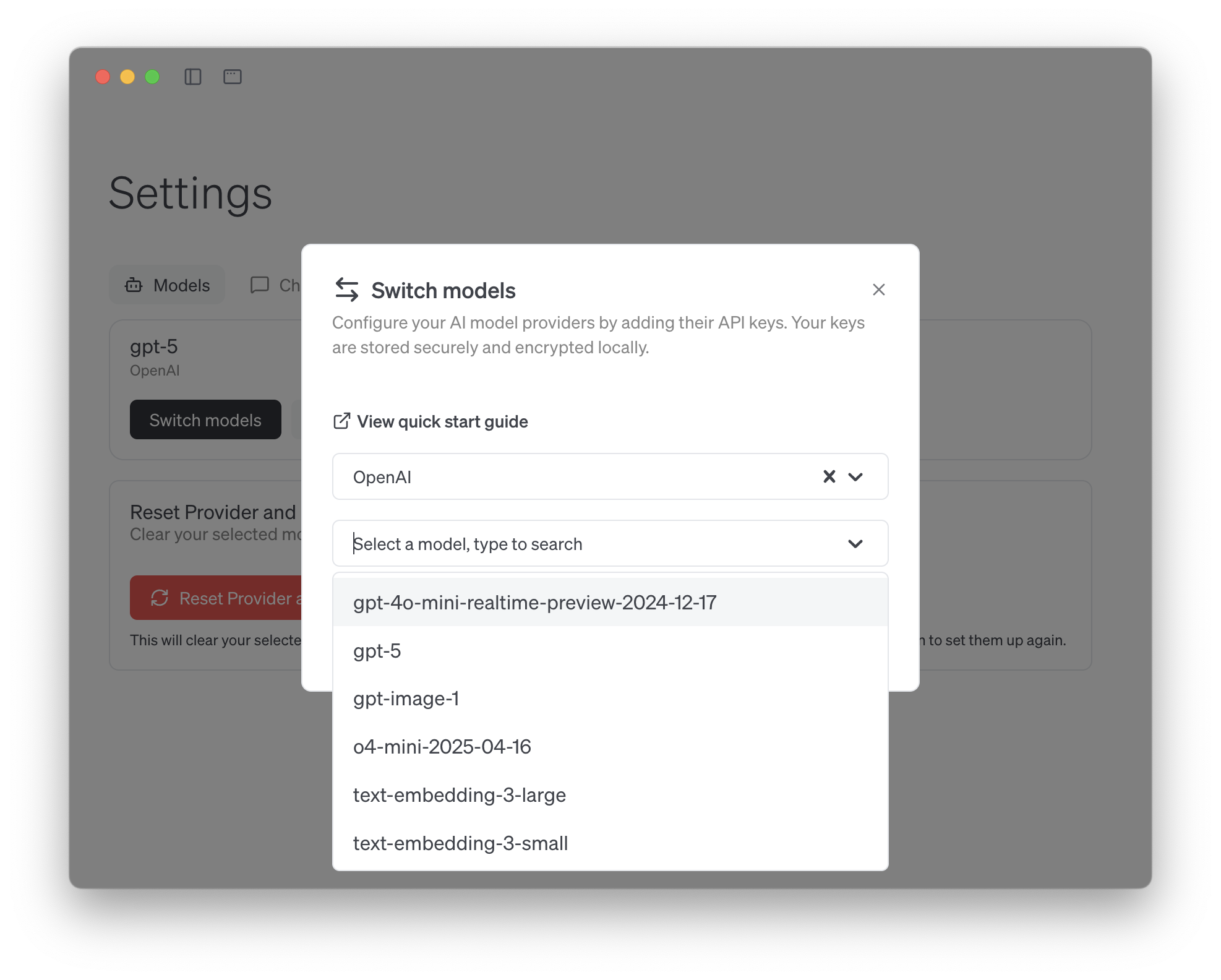
* [ ] Still in the provider configuration section, locate a subsection for Models or Available Models.
* [ ] From the list (which Goose pulls via your key), identify and add the Parley models you intend to use. Example: `gpt-5` (text / chat).
* [ ] Once added, a notification should appear to confirm that it has been configured.
{% endstep %}
{% step %}
## Chat in Goose
* [ ] Return to Goose’s main window (e.g. Home or Chat tab).
* [ ] Start a new chat session. Goose will route requests via Parley using `gpt-5` by default.
* [ ] Enter your prompt and receive responses as you would in any chat interface.
{% endstep %}
{% step %}
## Optional: Add Extensions
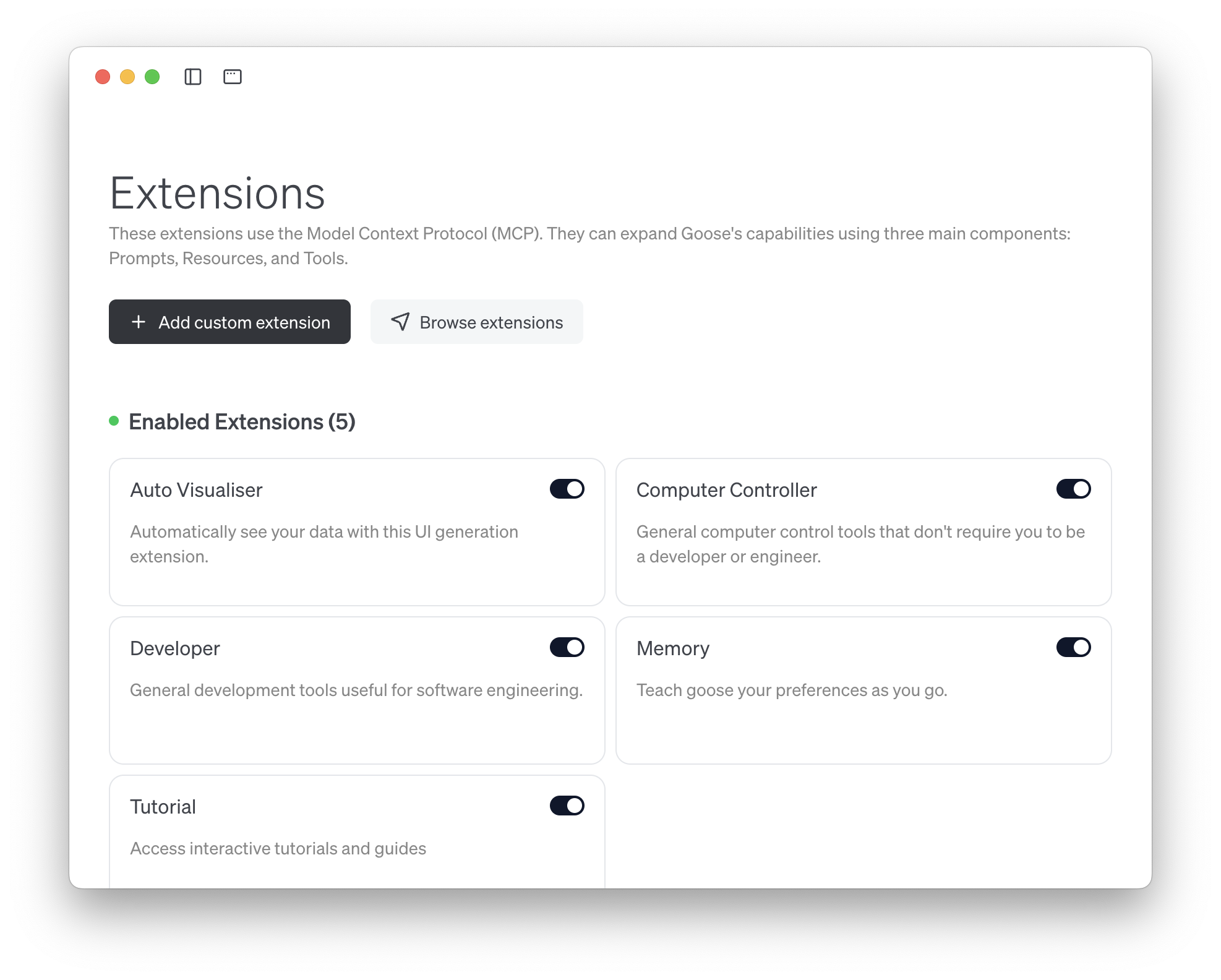
* [ ] Select the *Extensions* menu in the left rail.
* [ ] Activate the features that you find useful for your task. These are also known as MCPs.
{% endstep %}
{% endstepper %}
---
# Agent Instructions
This documentation is published with GitBook. GitBook is the documentation platform designed so that both humans and AI agents can read, navigate, and reason over technical content effectively. Learn more at gitbook.com.
## Querying This Documentation
If you need additional information that is not directly available in this page, you can query the documentation by asking a question.
Perform an HTTP GET request on the following URL with the `ask` and `goal` query parameters:
```
GET https://llm.theparley.org/choose-your-app/codename-goose.md?ask=&goal=
```
`ask` is the immediate question: it should be specific, self-contained, and written in natural language.
`goal` is what the user is ultimately trying to achieve, the reason they need the answer. Sharing it helps GitBook give you a better, more relevant answer. A goal is most helpful when it describes the outcome the user wants rather than restating the question. For example, with `ask=how do I create an API token`, a goal like `automate deployments from our CI pipeline` lets GitBook tailor the answer to that use case.
The response will contain a direct answer to the question and relevant excerpts and sources from the documentation.
Use this mechanism when the answer is not explicitly present in the current page, you need clarification or additional context, or you want to retrieve related documentation sections.